
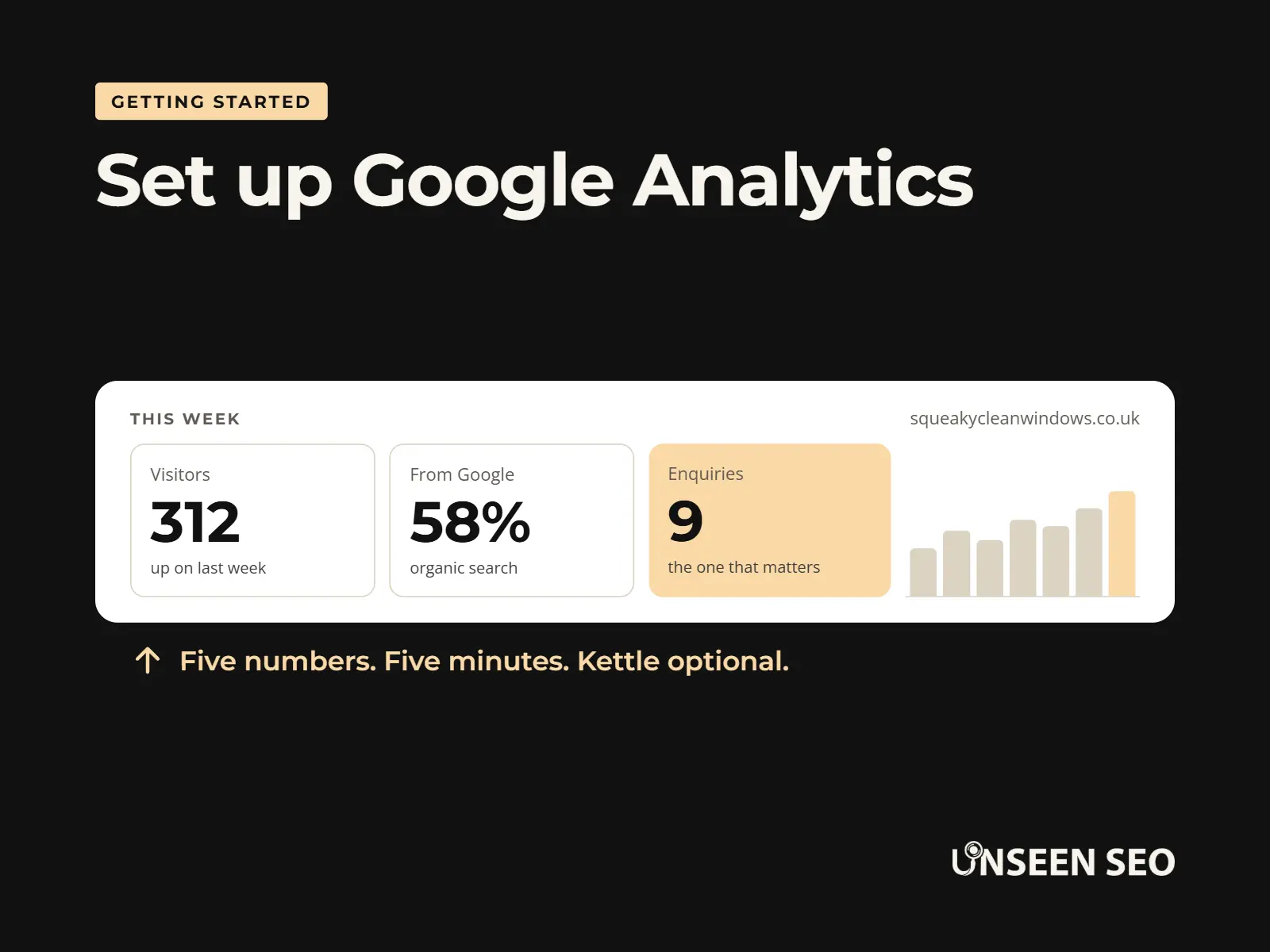
Google Analytics is free, takes about 20 minutes to set up, and tells you how many people visit your website, where they came from and whether they got in touch. If your website runs on WordPress, there’s an even easier route: Google’s free Site Kit plugin, which is what we use on this website.
This guide covers both ways of setting it up, the couple of settings worth changing straight away, and the five numbers a small business actually needs to check each week. No 40-tab tour, we promise.
Contents
- What is Google Analytics?
- Before you start
- The easy way: WordPress and Site Kit
- The standard way: set it up in Google Analytics
- Check it’s working
- Three settings to change on day one
- The five things worth checking each week
- Google Analytics vs Search Console
- Cookies and privacy
- Common mistakes
- Common questions
What is Google Analytics?
Google Analytics is a free tool from Google that counts the visitors to your website and shows what they do there. The current version is called Google Analytics 4, or GA4. It replaced the old version (Universal Analytics) in 2023, so if you see guides talking about “views” and “goals”, they’re out of date.
Think of it as a footfall counter for your website, with a few extras. It tells you:
- How many people visit, and whether that’s going up or down
- Where they came from: Google, social media, another website, or typing your address straight in
- Which pages they look at, and which page they arrived on
- What device they use, and roughly where they are
- Whether they did something useful, like sending an enquiry or tapping your phone number
What it doesn’t tell you is how you appear in Google’s search results, or which searches you show up for. That’s Google Search Console’s job. More on how the two fit together further down.
Before you start
You’ll need three things:
- A Google account. Ideally a business one you’ll keep, rather than a personal Gmail you might lose access to
- Access to your website, so you can add a plugin or paste in a code
- About 20 minutes, and a cup of tea
If someone else built your website, check they haven’t already set up Analytics under their account. If they have, ask them to add you as an administrator so you’re never locked out of your own numbers.
The easy way: WordPress and Site Kit
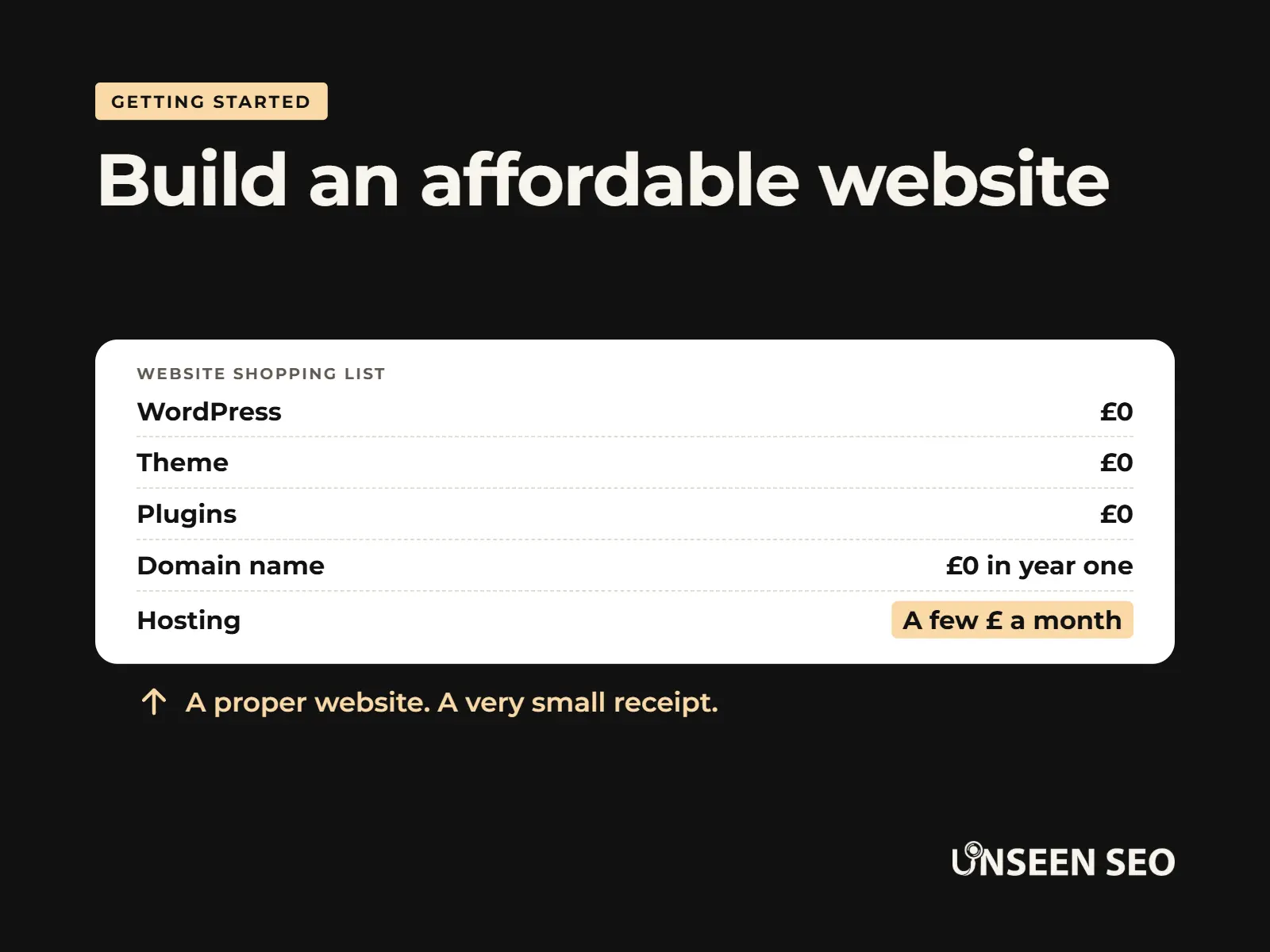
If your website runs on WordPress, Google’s own Site Kit plugin does most of the work for you. It’s free, it connects Analytics and Search Console in one go, and it shows the headline numbers right inside your WordPress dashboard. It’s what we use on this website (we explain the rest of our setup in our guide to creating an affordable website).
- In your WordPress dashboard, go to Plugins › Add New, search for Site Kit by Google, then install and activate it
- Click Start setup and sign in with the Google account you want to use
- Follow the prompts to verify you own the website and connect Search Console
- When it offers to set up Analytics, say yes. Site Kit can create a new GA4 property for you, or connect one you already have
- Once it’s done, open Site Kit › Dashboard in WordPress to see your visitors and searches side by side
That’s genuinely it. Site Kit adds the tracking code to every page for you, so there’s nothing to copy and paste. It can also track enquiries from some popular WordPress contact form plugins, which saves a fiddly job later.
The standard way: set it up in Google Analytics
Not on WordPress? No problem. These are the steps Google gives, in plain English:
- Create an account. Go to analytics.google.com and click Start measuring. Give the account your business name and choose your data-sharing settings
- Create a property. This is your website’s space in Analytics. Name it, set the time zone to the UK and the currency to pounds, then pick your industry and business size
- Add a data stream. Choose Web, enter your website address and a name, and leave enhanced measurement switched on. It tracks useful things like scrolling and clicks on links to other websites automatically
- Copy your Measurement ID. It’s in the stream details and starts with G-
- Add it to your website. Most website builders, including Wix, Squarespace and Shopify, have a setting where you simply paste the ID. Otherwise, follow Google’s tag instructions and paste the code into the
<head>of every page, or ask whoever looks after your website
Check it’s working
Open your website in another tab (on your phone works too), then in Google Analytics go to Reports › Realtime. Within a minute or so you should see a visitor: you.
Google says data can take up to 30 minutes to start coming through, and the standard reports take a while to fill up, so don’t panic if it’s quiet on day one. If you still see nothing after an hour, check:
- The Measurement ID on your website matches the one in Analytics
- You’ve added it to the live website, not a test version
- You haven’t declined cookies on your own cookie banner (Analytics can’t count you if you have)
Three settings to change on day one
The defaults aren’t ideal for a small business. Two minutes in Admin fixes that:
- Keep your data for longer. In Admin › Data collection and modification › Data retention, change event data retention from 2 months to 14 months. Your headline reports aren’t affected either way, but the detailed ones are, and the change only works going forward
- Set up enquiries as key events. A key event (Google used to call these “conversions”) is an action you care about, like a contact form being sent. If your form shows a thank-you page, you can count visits to that page. On WordPress, Site Kit may handle this for you
- Filter out your own visits if you visit your own website a lot. Analytics lets you define your internal traffic and exclude it, so your own checking doesn’t inflate the numbers
Also worth doing: link Analytics to Search Console (Admin › Product links) so you can see some search data inside Analytics too. Site Kit users get this view in the WordPress dashboard already.
The five things worth checking each week
Google Analytics has dozens of reports. You can happily ignore almost all of them. For a small local business, these five questions cover what matters:
Your five-minute weekly check
Are more people visiting than usual?
Reports › Reports snapshot. Compare with the previous week
Where did they come from?
Reports › Acquisition › Traffic acquisition
Which pages did they land on?
Reports › Engagement › Landing page
Did anyone get in touch?
Reports › Engagement › Key events (once you’ve set them up)
Phone or computer?
Reports › Tech › Tech overview
Menu names as they appear in Google Analytics 4 in November 2026. Google does move things around now and then.
1. Are more people visiting than usual?
Look at users (roughly, people) over the last week, compared with the week before. One quiet week means nothing. A steady slide over a month is worth a look. Seasonal businesses should compare with the same time last year, once you have a year’s data.
2. Where did they come from?
Traffic acquisition splits your visitors into channels. The ones you’ll see most:
- Organic Search: people who found you in Google or Bing without an ad. This is your organic traffic, the number SEO is meant to grow
- Direct: people who typed your address in or used a bookmark (or Analytics couldn’t tell where they came from)
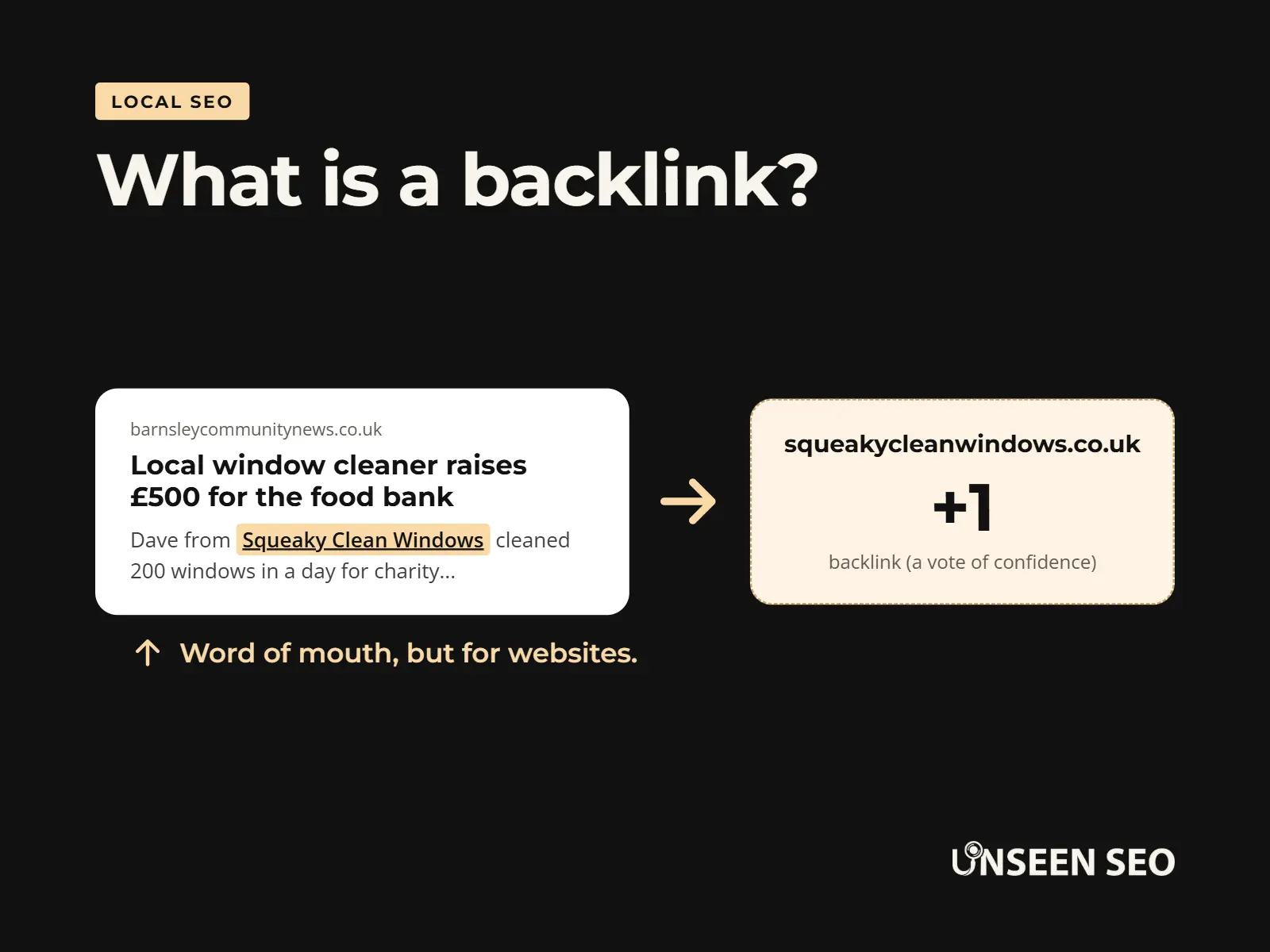
- Referral: people who clicked a link on another website. Worth checking which ones, as these are your backlinks earning their keep. You may start to see AI assistants like ChatGPT here too
- Organic Social: people from Facebook, Instagram, LinkedIn and so on
Visitors who click through from your Google Business Profile usually appear under Organic Search too. Your profile has its own performance stats as well, which are worth a glance each month.
3. Which pages did they land on?
The Landing page report shows the first page people saw. If a service page you care about barely appears, it may not be showing up in Google, or it may need better wording. If a page gets lots of visitors but nobody gets in touch, that’s a clue to improve it.
4. Did anyone get in touch?
This is the one that really matters. Visitors are nice; enquiries pay the bills. Once you’ve set up your enquiries as key events, check how many came in and which channel and page they came from. Your conversion rate (the share of visitors who get in touch) is a better health check than visitor numbers alone.
5. Phone or computer?
For most local businesses, the majority of visitors are on phones. If that’s you, make sure your website is quick and easy to use on a small screen, with your phone number tappable. If your site feels sluggish, here’s why websites get slow and what to do about it.
You might also hear about bounce rate. In GA4 it means the share of visits where people didn’t really engage. It’s not worth losing sleep over: someone who finds your phone number and rings you straight away might count as a “bounce”, and that’s a win.
Google Analytics vs Search Console
People mix these up all the time. They’re both free, both from Google, and they work best together:
| Google Analytics | Google Search Console | |
|---|---|---|
| Answers | What do visitors do on my website? | How do people find me on Google? |
| Covers | Visitors from everywhere: Google, social, email, other websites | Google search only |
| Shows | Visitors, pages, devices, locations, enquiries | Searches, impressions, clicks, average position, indexing problems |
| Cost | Free | Free |
| Best for | Seeing what’s working once people arrive | Seeing which searches bring people in, and fixing problems |
A simple way to remember it: Search Console is what happens before the click, Analytics is what happens after it. If you haven’t set up Search Console yet, here’s how to set up Google Search Console. On WordPress, Site Kit does both at once.
Cookies and privacy
Google Analytics uses cookies, so UK cookie rules apply. The rules changed in 2026 to allow some analytics cookies without consent, but that exemption is narrow, and many advisers say it doesn’t cover Google Analytics because the data goes to Google. The safe approach is:
- Use a cookie banner that asks before Analytics loads
- Mention Google Analytics in your privacy policy
- Check the ICO’s guidance on cookies if you’re unsure (we’re SEO people, not lawyers)
The side effect is that people who say no won’t be counted. That’s fine. Analytics is for spotting trends, not counting every last visitor.
Common mistakes
- Setting it up under someone else’s account. If your web designer owns it, you could lose years of data when you part ways. Make sure you’re an administrator
- Adding the code twice. A plugin and a pasted code at the same time can double-count every visit
- Leaving data retention at two months. Change it to 14 months on day one
- Checking it every day. Small websites have small numbers, so daily figures bounce around. Weekly is plenty
- Chasing visitor numbers. Fifty visitors who ring you beat five hundred who don’t. Track enquiries
- Forgetting Search Console. Analytics can’t tell you which searches you’re showing up for
Common questions about Google Analytics
Quick answers to the questions people ask Google most about setting up Google Analytics.
Sign in at analytics.google.com, create an account and a property for your business, then add a web data stream for your website. Copy the Measurement ID (it starts with G-) and add it to your website, either through a plugin like Google’s Site Kit for WordPress or the analytics setting in your website builder. Then check the Realtime report to make sure your own visit shows up.
Yes. The standard version of Google Analytics is free, and it’s all a small business needs. There’s a paid version, Analytics 360, but that’s aimed at very large organisations.
How many people visit your website, where they came from (Google, social media, other websites or typing your address in), which pages they look at, what device they use, roughly where they are, and whether they took an action you care about, like sending an enquiry.
No. Visitors who decline cookies or use ad blockers often won’t be counted, so the real number is usually higher. Treat the figures as a reliable guide to trends (up, down, steady) rather than an exact headcount.
It can be overwhelming, it doesn’t count everyone, and in the UK you need to think about cookie consent. It also only shows what happens once people reach your website. For how you appear in Google’s results, you need Google Search Console as well.
They answer different questions. Search Console shows how people find you on Google (searches, impressions, clicks). Analytics shows what visitors from every source do once they arrive. Both are free, and using them together gives you the full picture.
Most likely, yes. UK cookie rules changed in 2026 to allow some analytics cookies without consent, but the exemption is narrow and many advisers say Google Analytics doesn’t qualify. The safe approach is a cookie banner that asks before analytics loads. Check the ICO’s guidance if you’re unsure.
Usually the tag isn’t on the website yet, it’s on the wrong website, or it’s only been a short while. Data can take up to 30 minutes to start appearing, and standard reports can take longer. Visit your site, then check the Realtime report. If you’re declining cookies on your own banner, you won’t see yourself either.
Yes. You don’t need a course to get value from it. Set it up, learn the five reports in this guide, and check them weekly. Google also has free training through its Analytics Academy and Skillshop if you want to go further.
The 30-second version
Google Analytics is free and shows who visits your website, where they came from and whether they got in touch. On WordPress, Google’s Site Kit plugin sets it up for you; otherwise create an account, property and data stream, then add your G- Measurement ID to your website. Check it’s working in the Realtime report, change data retention to 14 months, and set up your enquiries as key events. Then spend five minutes a week on visitors, channels, landing pages, enquiries and devices. Use Search Console alongside it, and a cookie banner too.
Want a hand with it?
Got Analytics set up but not sure what the numbers are telling you? Our £150 No Nonsense Audit looks at your website, your Analytics and your Search Console data, and tells you in plain English what’s working and what to fix first. If you’d rather someone set it up with you or walked you through your reports, that’s £50 an hour. Or just drop us a message.

Leave a Reply